Move Firefox Tabs From Top To Side

Posted by Laxman Kudva in

firefoxMany experienced Windows users have moved the Windows Taskbar from the bottom to the side. This offers several advantages like displaying more tabs at the same time without grouping them or saving horizontal screen estate. These users on the other hand rarely think about moving the tabs of the web browser to the side which is strange as this offers the same advantages. This is especially true for widescreen computer systems and systems with large computer monitors that run on a resolution that almost no websites make use of completely.

One of the Firefox add-ons that can move the tabs from the top to the side is the excellent Tree Style Tab add-on which comes with dozens of configuration settings. The add-on will automatically move all open tabs to the left side of the web browser by default with the option to move it to the right, bottom or top as well. The add-on comes with several visual themes to change the appearance of the tabs in the sidebar.

web browser

More important than that are the advanced configuration settings. Child pages of a website already open in a tab will be opened beneath that tab with the option to hide them if the main page is not selected.

The Tab Operations tab can be used to fine tune how and where new tabs are created and how tabs are opened in the web browser. It is for example possible to add new tabs as a child of the active tab even if the domain names do not match.

tree style tab

It is basically possible to configure the add-on to work exactly as wanted. Hiding tabs is for example a very useful feature for users who work with dozens of tabs. Users who rarely open more than ten tabs on the other hand might not find it as advantageous.

Tree Style Tab offers an interesting alternative by allowing users to move tabs from the top to the side of the web browser.

Create a 3D logo with The GIMP

Posted by Laxman Kudva in

Any of you that do any graphic design or web development know how important it is to have tools at your disposal to handle just about any task that might come your way. And even if you don’t have graphic design skills you will, someday, have to create something quickly to use for a web site, or presentation, or just about any other media. When that day comes, and you need to create a quick, professional looking logo, be glad you have The GIMP.

With The GIMP, creating rudimentary 3D logos is painless…if you know the steps. And with a good collection of fonts you can make your clients think you have far more skills than you might actually have. With that in mind, let’s take a look and see just how simple it is to create a 3D logo with The GIMP.

How it works

The GIMP has a built in feature that helps you to create these logos. We will be working with version 2.6 - which is actually important because the engine that creates these has changed as well as the location of the submenu has changed. So if you don’t have 2.6, give upgrading a go.

The process is pretty simple.

  • Select the type of logo you want to create from the Create menu.
  • Enter all of the necessary information and select the configurations to suit your needs.
  • Click OK
  • Edit the image to suit your needs.
  • Save the file.

Now let’s take a look at the process with a bit more detail.

The logo tool

Figure 1

Figure 1

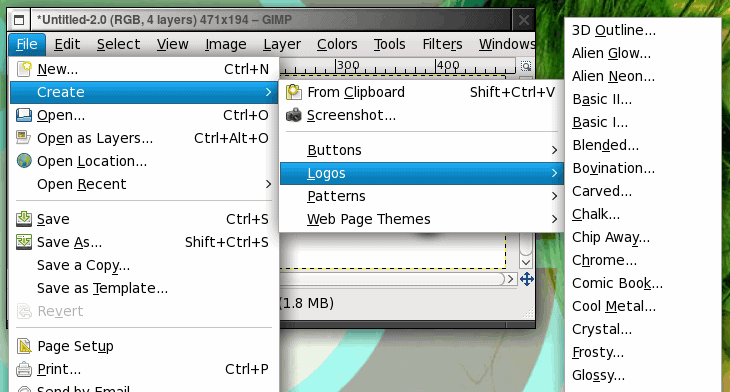
To open up the logo tool go to the File menu and select the Create submenu. From with the Create submenu you will see the Logos submenu, click on that to reveal the different types of logos you can create (see Figure 1).

The different types of logos range from the cartoonish, to the professional, to the nearly-fantastical. There are quite a few choices so your best bet is to play around with them until you find the type of logo you prefer to work with.

Figure 2

Figure 2

Once you click on the logo type you want to create a new window will open. It is within this window that the logo is created. The good news is, you really need zero artistic skills to tackle this task.

Figure 2 shows all of the configuration options you will have to deal with to create a logo. Don’t let amount of options fool you, you really only need to work with a minimum of these to create your logo. Here’s what you’ll need to work with:

Text: This is what your logo will say.

Font: This is the font you want to use for your logo.

Blend Gradient(s): These will be the gradient colors you will use for your logo. You can create new gradients as well. The included gradients should be plenty to get you started.

Background Color: If you know the color of the background your logo will be going over you can change this here. I usually delete the background color so the logo is surrounded by a transparent border.

Figure 3

Figure 3

And that is the bare minimum you need. Once you have all of that filled out, click OK and the logo will be created.

Figure 3 shows a sample logo created using the Glossy logo tool, the Biometric Joe font, and the Cold Steel 2 gradient.

Of course there are plenty more options to configure for your logo - but getting the hang of the basics will give you plenty to do with this tool.

Figure 4

Figure 4

TIP: As I mentioned I tend to remove the background in this logos. What this does is allow my logos to be placed on any color background. To do this go to the layer window of your new logo, select the background layer, and click the delete button in the layer window. When you save this image you will now want to make sure you save it in a format that supports transparency (such as .gif or .png.)

Watch TV And Video With StreamTorrent

Posted by Laxman Kudva in

StreamTorrent is a free software program for the Windows operating system that allows users to watch - and stream - TV and videos over the Internet. The relatively unknown application provides access to hundreds of popular TV stations including BBC One, BBC Two, ESPN 360, Fox Sports 2, ESPN and HBO. The software uses P2P technology that is popular in similar applications like TVU Player which means that the computer’s bandwidth is used to stream the contents to other users.

Users start by clicking on File > Search in the menu to open the search interface which can be used to list all available channels or filtered channel lists either by keyword or pre-selection (e.g. sports, top 100). It is also possible to enter a keyword which will search for and return all channels matching that keyword. A good start is probably the top 100 channel list.

watch tv online

It takes a few seconds to populate the channel list which displays one channel per row. Each row includes the name, bitrate, quality, audience and other values. The most important are the bitrate, quality and audience as these are indicators on the quality of the picture and the bandwidth that is needed to watch the channel fluently.

A click on a channel with open an internal viewer that is connecting to the selected tv channel. This process can also take some time as the StreamTorrent begins the buffering process.

watch tv

The player offers basic status information and controls including a buffer bar, changing to full screen and changing the volume.

watch hbo

Watching tv is probably the most popular use of StreamTorrent. It is possible to add new channels to the application and to start a live stream from the local computer system.

Automatic Image Resizing Software Shrink Pic

Posted by Laxman Kudva in

image resizing softwareThe size of digital photos and images has increased tremendously in the last years. Sizes larger than one Megabyte are not uncommon these days which becomes problematic when emailing photos or uploading them to websites on the Internet.

Most users resize photos before they email or upload them. This does become a nuisance if the process is done regularly, for example when uploading photos to blog posts. Shrink Pic automates the image resizing process by actively scanning for photos that get uploaded by the user to the Internet. It will for example detect photos that get uploaded to a Wordpress blog or those that get added to the Microsoft Outlook email client.

shrink pic

The image resizing software comes with a few options to handle the automatic process. It is for example possible to select the image formats that should be resized automatically by Shrink Pic and to change the compression level of the images.

The compression level is determined by the size of the image and the jpeg quality level. The high compression level reduces the size of the image automatically to 640×480 and applies a jpeg quality level of 85 while the low compression level changes the image size to 1024×768 instead.

This is unfortunately one of the disadvantages of the software as it is not possible to make the program keep the aspect ratio of the image.

The image resizing software will notify the user about the file size changes and keep track of overall statistics as well.

Shrink Pic is therefor a viable alternative for users who work with standard sized image formats only.

[HOW TO]Assign a Permanent Letter to a USB Drive

Posted by Laxman Kudva in

If you have multiple pen drives you might have noticed that every time you put in your drive it will be assigned a different drive letter.

This can be frustrating when trying to run backups or opening files from software as recent drive letter is changed. Even if you have created playlist of the songs which are in your pen drive it won’t work if the drive letter is changed.

Here are the steps you will have to follow to assign a permanent drive letter:-

1. Go to Start > Run

2. Type mmc in the box and hit enter.

3. Select File > New

4. Now select File > Add/Remove Snap-in.

5. Select “Disk Management” and click “Add

6. Select “OK“.

7. Select “This computer” and then “Finish

8. Now press “OK” on the “Add or Remove snap-ins” screen.

9. Now select “Disk Management” from the left menu.

10.You will now see all of your drives/partitions in the right hand side panel.

11.Right click the USB drive you want to assign a permanent letter to and select “Change Drive Letter and Paths…

12. Click on “Change

13. Select a permanent letter

14. Click “OK

15. It will warn you about making the change - there is little chance programs you use will be affected by this. If they will, you will probably already be aware of this so don’t worry.

16. The final step is to select File > Save and save the file in the default directory. Close the Console and you are done.

Now eject your usb drive and put it back in and see whether it is showing the assigned letter or not.

For a Safer XP, Close The Unwanted Services

Posted by Laxman Kudva in

To disable unneeded startup services for a safer, faster XP, use the "Services" Admin Tool (Control Panel > Administrative Tools > Services). If you are a single user of a non-networked machine, you can disable the following items, with no ill effect.

Alerter
Clipbook
Computer Browser
Fast User Switching
Human Interface Access Devices
Indexing Service (Slows the hard drive down)
Messenger
Net Logon (unnecessary unless networked on a Domain)
Netmeeting Remote Desktop Sharing (disabled for extra security)
Remote Desktop Help Session Manager (disabled for extra security)
Remote Procedure Call Locator
Remote Registry (disabled for extra security)
Routing & Remote Access (disabled for extra security)
Server
SSDP Discovery Service (this is for the utterly pointless "Universal P'n'P", & leaves TCP Port 5000 wide open)
TCP/IP NetBIOS Helper
Telnet (disabled for extra security)
Universal Plug and Play Device Host
Upload Manager
Windows Time
Wireless Zero Configuration (for wireless networks)
Workstation